How to Use Callmama App
Callmama is the simple, fast, and reliable app for all your calling needs. Learn how to make your first call in seconds!
Set Up Your Phone Number in 3 Easy Steps
Follow our quick video tutorial or a simple step-by-step guide to get started.
Download the Callmama App


How To Use Your Phone Number
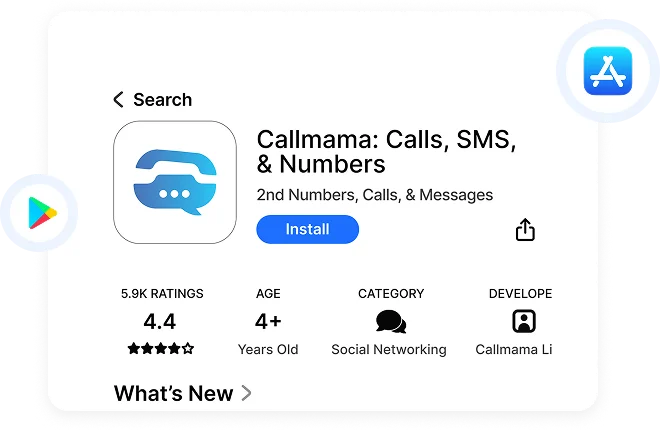
Step 1: Download the App
Download the CallMama app from the Google Play or Apple App Store to get started.Purchase your second phone number of your choice.
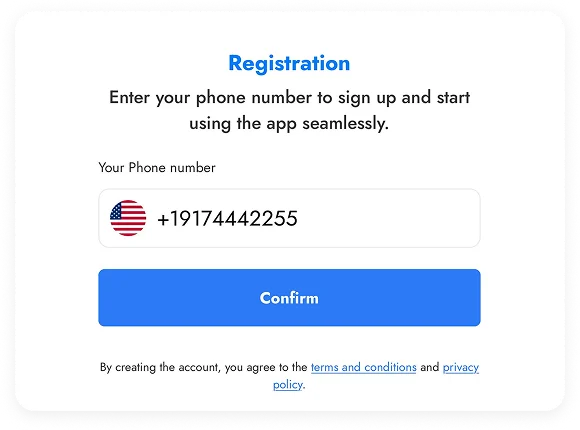
Step 2: Register your Account
Create your secure account using your your real number and email in just a few quick steps.
Step 3 : Choose and Purchase Number
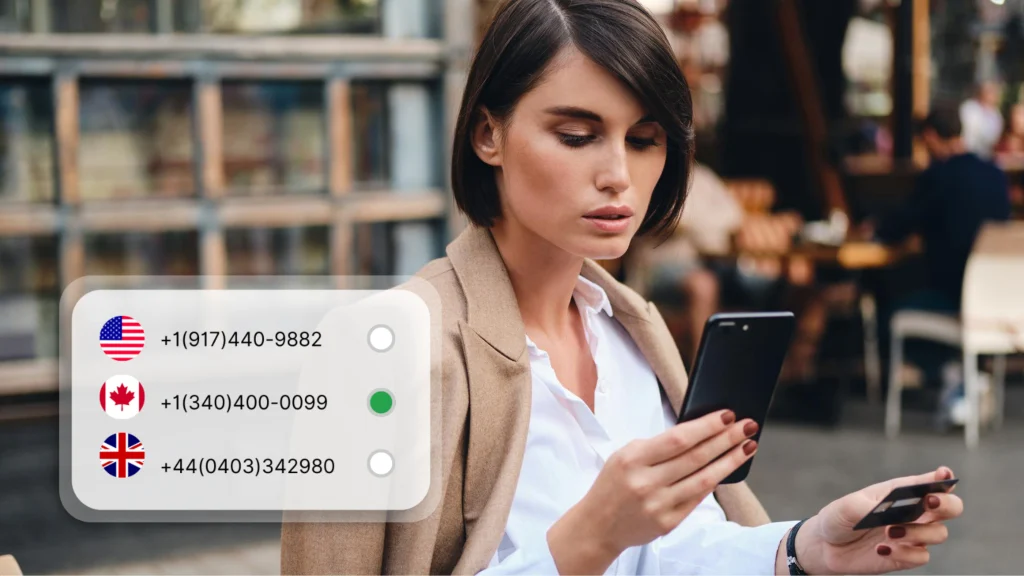
Select virtual numbers from various countries, then purchase the right one for you.
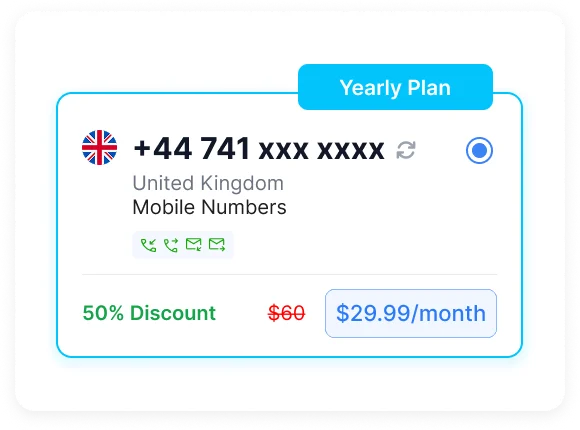
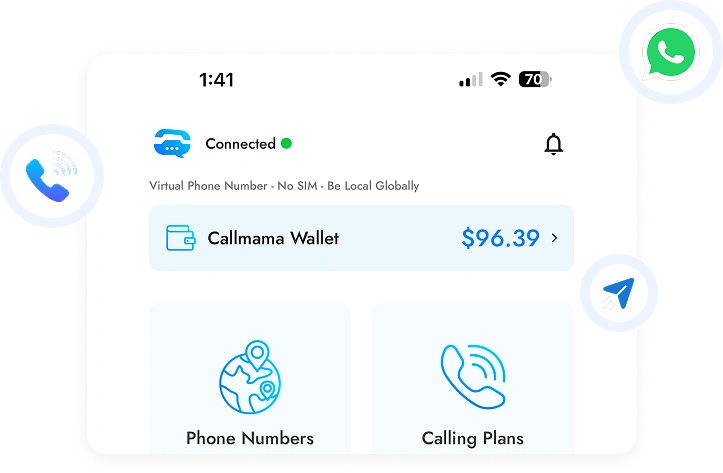
Step 4 : Start using the Number
Your new number is now active! Instantly start making and receiving calls and texts.
Frequently Asked Questions (FAQs)
We offer local, international, Mobile, and toll-free numbers depending on your needs.
You can easily acquire a number through our app or web by selecting the desired country and type of number.
Yes, We provide phone numbers to 65+ countries, but availability may vary by location.
Yes, you can have multiple numbers on a single account.
You can manage all your phone numbers from the dashboard of the app or web.
Yes, our numbers can be used for both personal and business communication.
Yes, you can use the same number for both SMS and calling.
We don’t offer the option to change an existing number. If you need a different one, you can purchase a new number based on your requirements through your account.
Yes, call forwarding can be easily set up via the app and web.
Costs vary based on the type and country of the number.
Yes, you can receive calls on international numbers as long as they are correctly set up.
No, once the service is canceled, the number will be deactivated and may be reassigned.
No need to delete it; the number will be removed automatically once the subscription ends.
Start making and receiving international calls
Follow our quick video tutorial or a simple step-by-step guide to get started.
How To Use Callmama For International Calls
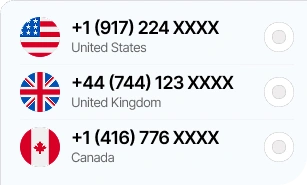
Step 1 : Purchase Number
Purchase your second phone number of your choice.
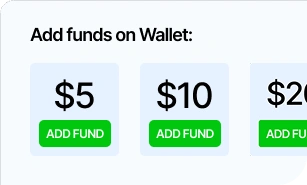
Step 2 : Add Funds
Add funds on your wallet to make calls.
Step 3 : Make Calls
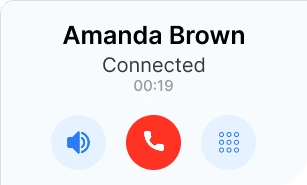
Start making calls with standard call rates.
OR
You can purchase the calling plan as per your needs. And get more lower calling rates.
Step 1 : Purchase Number
Purchase your second phone number of your choice.
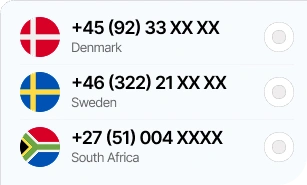
Step 2 : Add Funds
Add funds on your wallet to make calls.
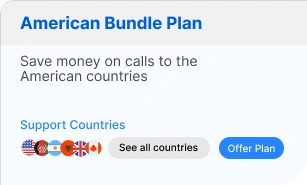
Step 3 : Get Calling Plan
Purchase a Calling Plan for the country you want
Step 4 : Make Calls
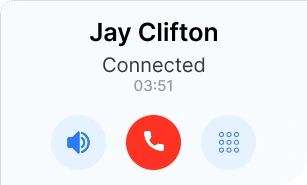
Start Calling & enjoy lower rates on every call you make.
Frequently Asked Questions (FAQs)
Simply select the international number and dial as you would with any regular phone call.
No, we offer international calls at the lowest rates, helping you save more on every call. Check our pricing on App for specific details.
Yes, You can make international calls to most countries, though availability may vary by region.
No, you can make unlimited international calls, depending on your plan. And you can call with your wallet balance
You can either purchase a calling plan or use your wallet balance to make international calls.
You can check our rates for international calls on the pricing page of the app.
Currently, we don’t offer the option to schedule calls, but you can make international calls anytime directly through the app or Web.
There are no additional fees for international calls; you pay only for the call rates based on the destination.
Yes, you can block incoming international calls through the app settings.
Our international calls maintain high-quality standards, depending on network availability.
If you experience poor call quality, please check your network connection or contact support.
Yes, you can make international calls regardless of your location, provided you have internet access.
Your international call history can be viewed in the app’s call logs.
If you’re unable to make an international call, ensure you have an active calling plan, sufficient balance in your wallet, and a stable internet connection. If the issue persists, please contact support.
Start sending and receiving messages globally
Download the Callmama App
How To Use Callmama SMS
Step 1 : Purchase Number
Purchase your second phone number of your choice.
Step 2 : Add Funds
Add funds on your wallet to make calls.
Step 3 : Compose Message
Select number and enter your message to start a conversation.
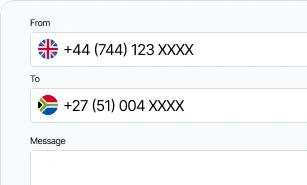
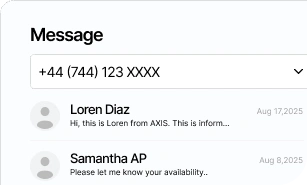
Step 4 : Start Using SMS
Start a new conversation by composing text message.
Frequently Asked Questions (FAQs)
To send an SMS, simply open the app, choose a contact or enter a phone number, type your message, and press “Send.” It’s quick and easy!
The number of SMS you can send depends on your plan. If your plan is exhausted, you can still send SMS using your wallet balance.
Yes, you can send SMS to international numbers as well.
There are no additional fees, but international SMS have different rates depending on the destination country.
Currently, our app does not support sending bulk SMS to multiple contacts. However, you can send SMS individually to each contact.
The standard SMS character limit is 160 characters. Longer messages will be split into multiple texts.
Currently, our app does not support sending MMS with pictures or videos. You can only send SMS.
Yes, you can receive SMS on your international phone number as long as it’s properly set up.
You can view your sent and received SMS in the app’s message history.
SMS requires internet access through the app. Without it, sending SMS will not be possible.
You can block specific numbers to avoid unwanted SMS.
SMS can only be sent to mobile numbers.
Yes, the app provides delivery reports for all SMS messages sent.
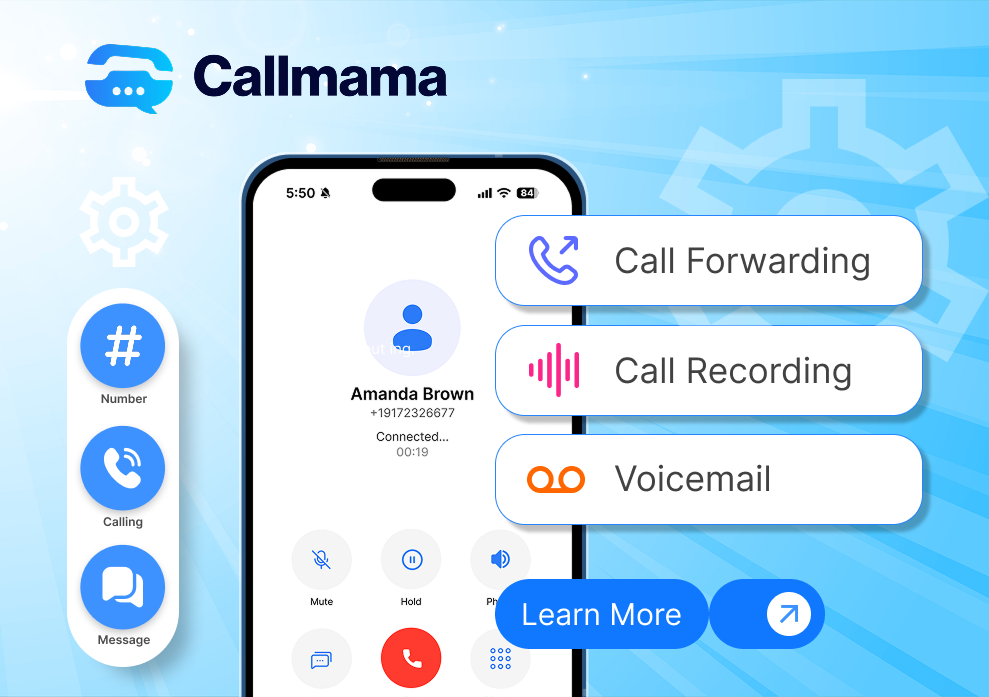
Maintain seamless connectivity by directing calls to a preferred number, ensuring you're always available to your clients.
Follow our quick video tutorial or a simple step-by-step guide to get started.
Present a professional image with a personalized voicemail greeting and easy access to your messages.
Follow our quick video tutorial or a simple step-by-step guide to get started.
Archive conversations securely, providing a reliable source for information, team training, and dispute resolution.
Follow our quick video tutorial or a simple step-by-step guide to get started.
Download the Callmama App
How To Use Call Forwarding Feature
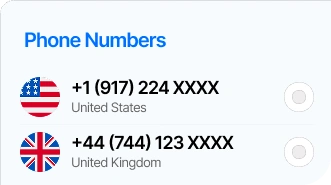
Step 1 : Buy New Number
Choose the number you want to use for call forwarding service.
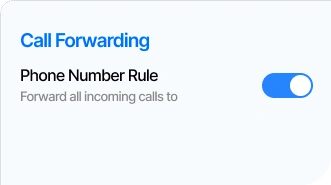
Step 2 : Activate Service
Enable call forwarding to set up your chosen number.
Step 3 : Set-Up Number
Enter the number where all incoming calls will be forwarded.
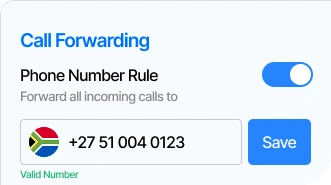
Step 4 : Enjoy Service
Enjoy seamless call forwarding to the designated number.
How To Use Voicemail Feature
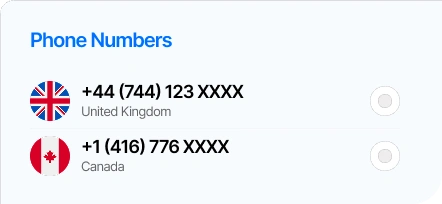
Step 1 : Buy New Number
For activating this service you need to purchase a phone number
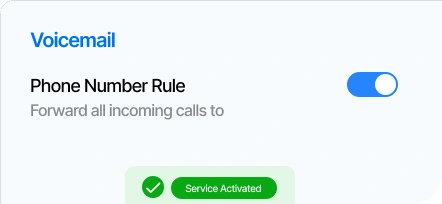
Step 2 : Activate Service
Activate the Voicemail service, so you dont miss any important calls.
Step 3 : Start Enjoying Service
Voicemail presents a professional image and captures message so you never miss a lead.
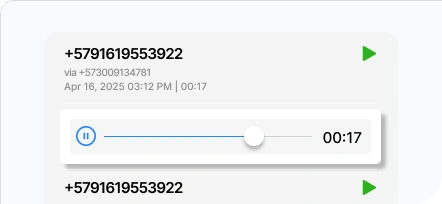
How To Use Call Recording Feature
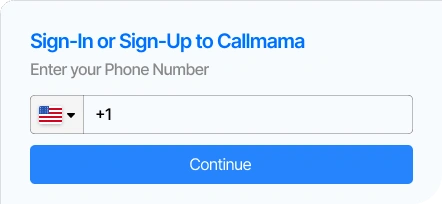
Step 1 : Log in to the User Portal
For activating this service you need to purchase a phone number.
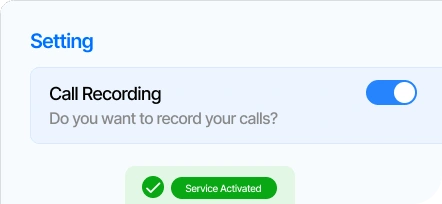
Step 2 : Activate Service
Navigate to the setting on user portal, and enable the Call Recording service.
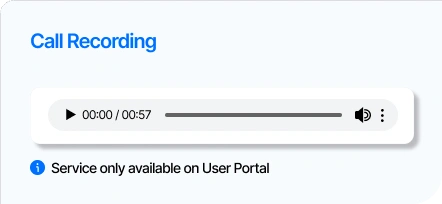
Step 3 : Start Using the Service
Enjoy the Call Recording service without any interruptions. Plus get 1 month free trial.
Frequently Asked Questions (FAQs)
Call forwarding redirects incoming calls from your phone number to another number.
You can easily set up call forwarding through the app’s settings.
Yes, you can forward calls to any number, including international numbers.
There may be additional charges depending on the destination number.
Currently, our app does not support forwarding calls to multiple numbers. Calls can be forwarded to one number at a time.
You can disable call forwarding at any time in the app settings.
Yes! You can send forwarded calls straight to your voicemail instead of another phone.
You will receive a notification whenever call forwarding is activated.
We don’t have time-based call forwarding at the moment. You can still forward calls anytime by turning on call forwarding in the app whenever you need it.
If the forwarded number is unreachable, the call may go to voicemail or return to the original number.
You can select any valid number, including international toll-free numbers, when setting up forwarding.
Call forwarding does not affect your call history; it will show as a forwarded call.
You can update the forwarding number directly in the app settings.
Frequently Asked Questions (FAQs)
Voicemail setup is easy and can be configured through the app’s voicemail settings.
Voicemails can be accessed by navigating to the voicemail section in the app.
Voicemails are recorded by callers in their own language. The system does not translate them.
No, voicemail-to-text transcription is not currently available.
Voicemails are stored for a specified period, based on your settings.
Yes, you can download voicemail messages from the web and then share them manually with others.
No, this feature is not currently available. Voicemail settings are shared across all phone numbers and cannot be configured separately.
If you don’t check your voicemail, messages will be automatically deleted after the default retention period.
Yes, you can disable voicemail for all numbers at any time.
You need an internet connection to access voicemail through the app.
Yes, voicemail can be accessed from any device where the app is installed and logged in.
Frequently Asked Questions (FAQs)
Call recording can be activated through the app’s settings for each individual call.
Yes, both incoming and outgoing calls can be recorded.
There’s no limit on the number of calls you can record, depending on your plan.
Yes, all recordings are stored securely with encryption.
You can listen to your recorded calls by logging in to your account on the web.
Yes, you can download your recorded calls directly from the web.
The legality of call recording depends on your location. Always ensure compliance with local laws.
Yes, you can set the system to automatically record all calls from the web. This feature is not available in a mobile app.
You can share recorded calls by exporting them or sending them as files.
Call recordings are stored in high quality for clear playback.
Recordings are stored based on your account’s storage policy.
Extra storage may be required if you record many calls. You can manage your storage through the web.
Yes, you can use recorded calls for training, quality assurance, and compliance purposes.
No, call recording settings apply globally and cannot be turned off for individual calls.








 United States
 United Kingdom
 Canada
 Australia
 Albania
 Germany
 France
 Italy
Italy
 Spain
Spain
 Japan
Japan
 South Africa
 Argentina
 212 (New York)