Introduction
The sent vs delivered debate confuses millions of phone users every single day. You send a text, watch the status change, and still cannot tell if your friend, client, or family member actually received it.
This guide breaks down what sent vs delivered means on SMS, iMessage, WhatsApp, and Android, why messages get stuck, and how to fix delivery problems fast. By the end, you will read every message delivery status like a pro and know exactly what to do when a text will not budge past “sent.”
Key Takeaways:
- Sent confirms your phone handed the message to the network, not that anyone received it.
- Delivered means the message reached the recipient's device, though it may still be unread.
- Message delivery status varies by app, since SMS, iMessage, WhatsApp, and RCS each track it differently.
- A stuck sent vs delivered status usually points to a network, device, or blocked-number problem you can fix in minutes.
What Do "Sent" and "Delivered" Actually Mean?
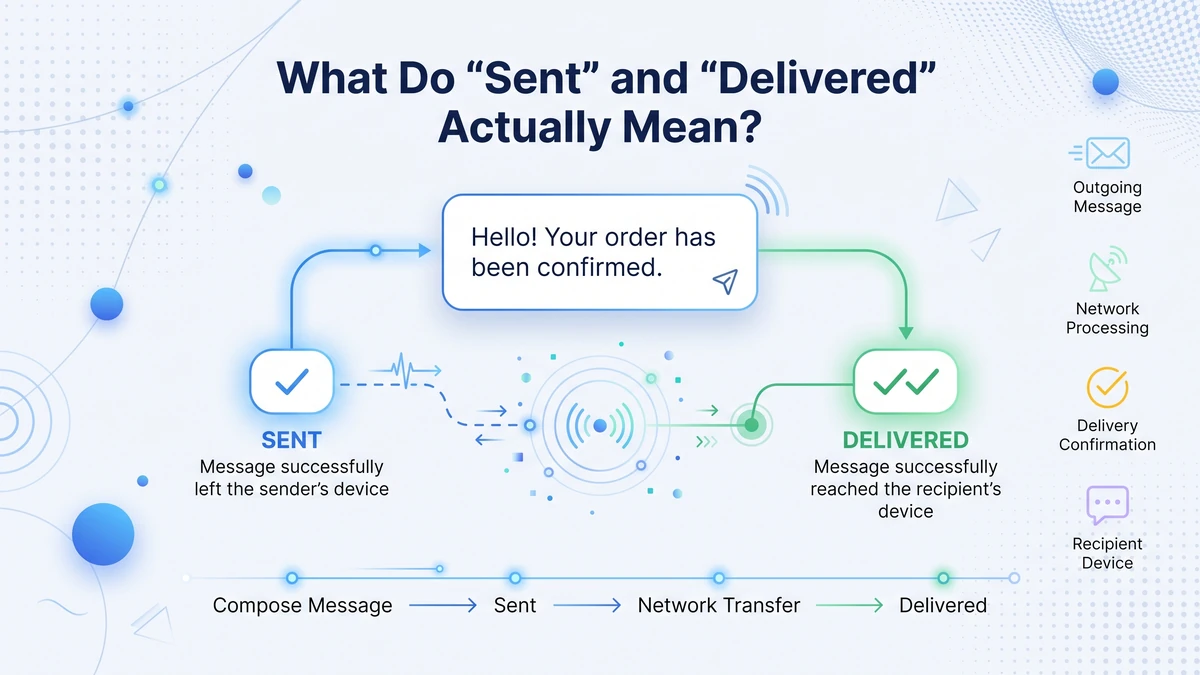
Every text you send moves through a chain of network handoffs before it reaches another phone. The sent vs delivered labels mark two separate checkpoints in that journey, and mixing them up is the main reason people misjudge whether a message actually arrived.
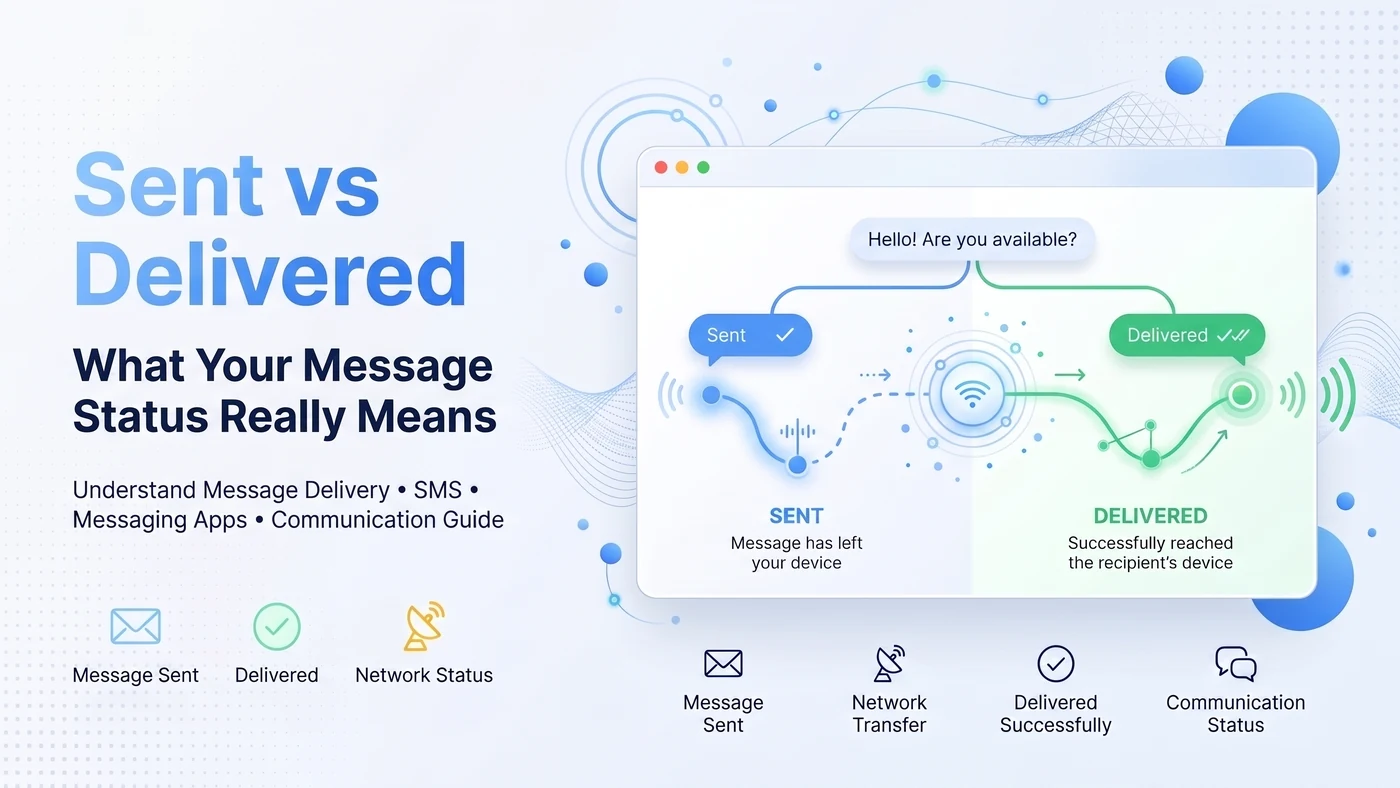
"Sent" means your device successfully passed the message to your carrier or app server. The network has accepted it, but no confirmation has come back yet from the recipient's phone, so the message could still be sitting in a queue somewhere between towers.
"Delivered" means the receiving device has confirmed it received the message and stored it locally, ready to be opened whenever the recipient checks their phone. This status update only tracks arrival, never whether someone opened or read the text, which is why a delivered message can still go unanswered for hours, days, or longer.
Knowing this distinction matters most when a message you sent for business, family news, or a one-time verification code needs to reach someone right away. A missed shipment update or a forgotten appointment reminder often traces straight back to this exact gap between the two statuses.
Sent vs Delivered Across Popular Messaging Apps
Every messaging platform displays sent vs delivered differently, which is exactly why so many people get confused switching between apps throughout the day.
SMS and Carrier Text Messages
Standard SMS relies on your carrier's network and often routes through SMS short codes and gateways to confirm arrival. Not every US carrier supports delivery reports, so a message can sit on "sent" even after it reaches the phone, leaving you guessing without a clear delivered label.
WhatsApp shows one grey check for sent and two grey checks once the status updates to delivered. Two blue checks confirm the message was read, though users can disable read receipts entirely, which hides that final confirmation from senders.
iMessage on iPhone
Apple's iMessage shows "Delivered" in small text beneath a blue bubble once the recipient's device confirms receipt. A green bubble means the text dropped to standard SMS, usually because the recipient has no internet connection or has turned iMessage off.
Android and RCS
Google's RCS messaging brings iMessage-style read receipts and typing indicators to Android, but only when both people have RCS enabled. Without RCS, plain Android SMS behaves like traditional carrier texting with limited delivery confirmation and no read status at all.
Step-by-Step: How to Send and Confirm a Delivered Text Message
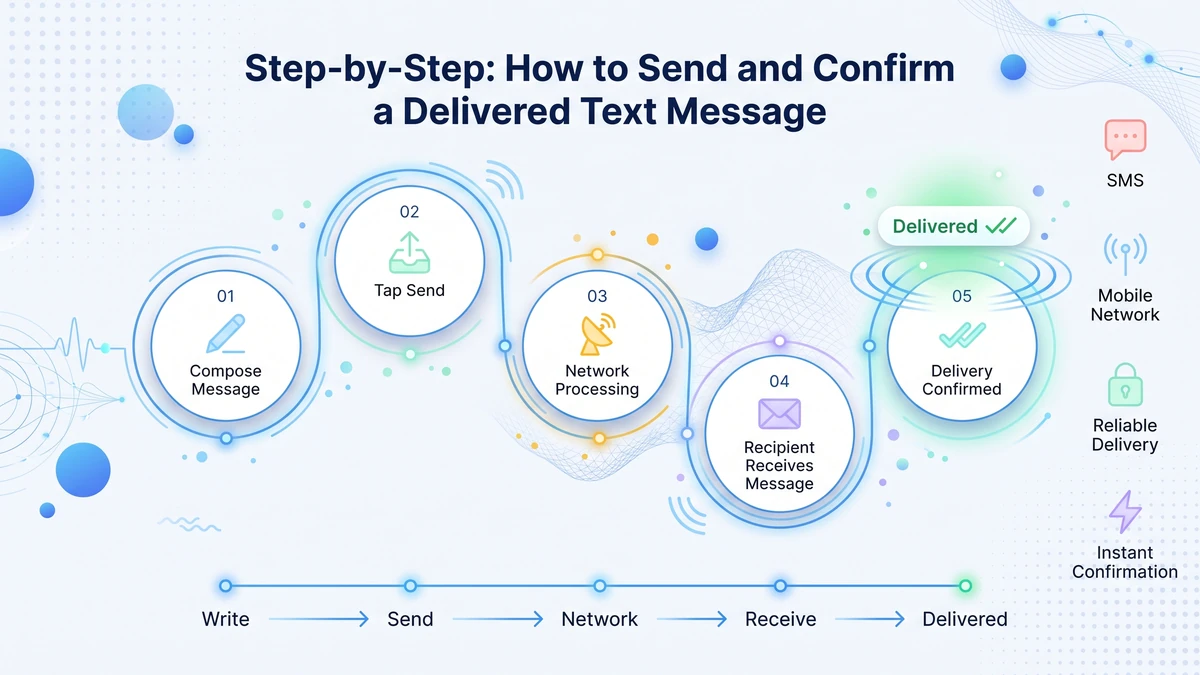
Follow these steps any time you want to move past a stuck sent vs delivered status and confirm your text actually arrived.
- Step 1 — Open your messaging app and confirm the recipient's number or contact card is correct.
- Step 2 — Type your message and check your connection — Wi-Fi or cellular data for chat apps, cellular signal for SMS.
- Step 3 — Send the message, then watch for the "Sent" label to appear beneath the bubble.
- Step 4 — Wait 10 to 30 seconds for the status to update to "Delivered" on supported apps.
- Step 5 — If the app supports read receipts, watch for that final confirmation once the recipient opens the text.
- Step 6 — If the status never changes, resend the message once, then try calling to confirm the person received it.
Tired of Watching Your Sent vs Delivered Status Stall?
A reliable virtual number keeps your messages moving instead of stuck in network limbo.
Costs and Free Options for Reliable Message Delivery
Carrier SMS usually comes bundled into a monthly phone plan, though international texts can add per-message roaming fees fast. Prepaid plans often cap included texts, charging extra once you cross the limit, which can make frequent texting abroad surprisingly expensive.
Free apps like WhatsApp, iMessage, and Telegram send unlimited messages over Wi-Fi or data at no per-text cost. Alternative numbers from services such as TextNow numbers give you a working line for calls and texts without a traditional carrier plan, which suits anyone testing a second number before committing.
Whichever option you choose, your sent vs delivered results depend heavily on which network or app carries the message. Virtual numbers offer a middle ground: low-cost monthly access with dependable delivery tracking, ideal for anyone texting internationally or running a small business line that needs consistent replies.
Limitations: Character Limits, Delivery Delays, and Carrier Restrictions
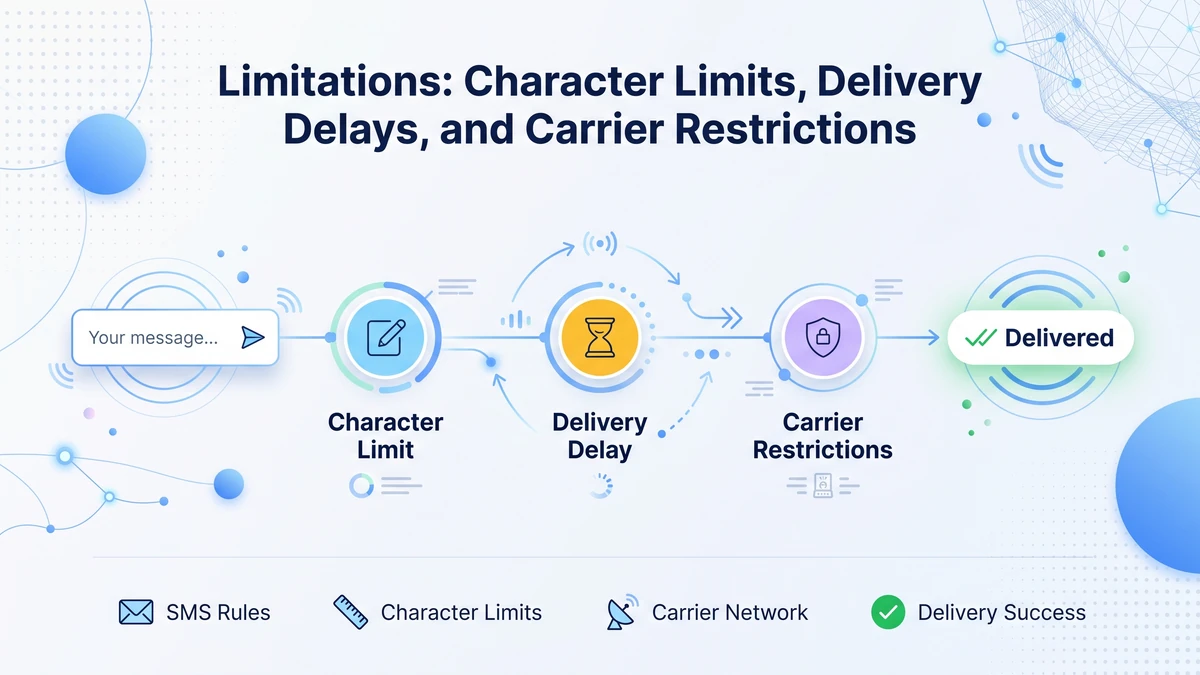
Standard SMS caps each message at 160 characters before splitting it into multiple linked texts, which can delay delivery on weak signal. MMS and app-based messages allow images and longer text, but recipients need compatible apps and enough data to receive them properly.
Carrier restrictions also shape your results. Some carriers block messages from flagged numbers, throttle bulk texts, or fail to pass delivery reports between different networks entirely, under rules outlined in FCC guidelines for wireless messaging and spam prevention.
International texts face extra delays since messages often hop across multiple carrier networks and border gateways before reaching the recipient's country. Time zone differences can also make a delivered message look stuck simply because the recipient's phone is asleep, powered down, or sitting in low-power mode overnight, even though the network already confirmed the drop-off.
Why a Message Gets Stuck on "Sent" (and How to Fix It)
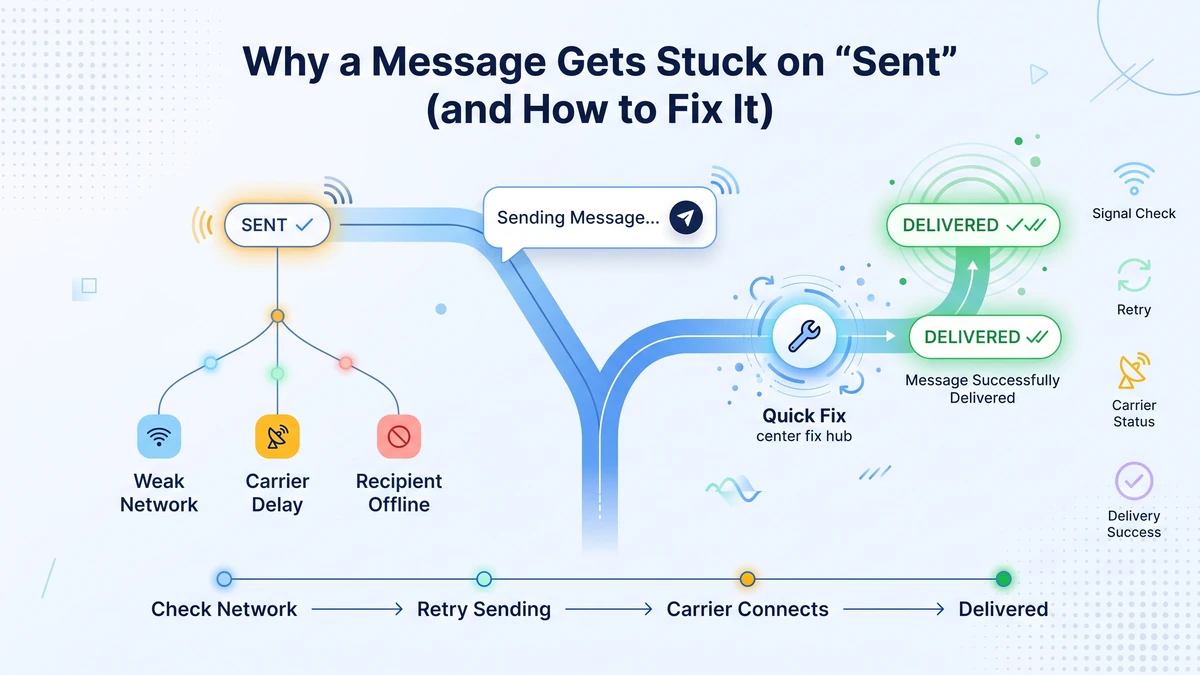
A message frozen on "sent" almost always traces back to one of a handful of common causes, most of which you can diagnose and fix yourself within a few minutes.
The recipient's phone could be powered off, in airplane mode, or sitting outside signal range entirely. Your own connection might be too weak to push the status update through, especially in rural areas, elevators, or basements with poor reception.
Blocked numbers never show an error — the message simply appears sent forever without ever reaching the other person's device. App-specific bugs, outdated software, or a recipient who deleted the app can also stall a text indefinitely, even when everything else looks normal.
Try switching between Wi-Fi and cellular data, restarting the app, or resending after a minute if your sent vs delivered status refuses to update. Toggling airplane mode on and off for a few seconds often forces a stubborn connection to reset.
How to Get a Virtual Phone Number from CallMama
CallMama gives you a dependable virtual number built for exactly this kind of sent vs delivered confusion, especially when you need consistent message delivery status across borders. It works over data instead of a single carrier network, so your texts and calls keep moving even when standard SMS stalls or drops entirely.
- Step 1 — Visit the official website or download the app from the App Store or Google Play.
- Step 2 — Create a free account using your email address.
- Step 3 — Choose a plan that fits your needs — monthly or pay-as-you-go.
- Step 4 — Select your virtual number by picking your preferred country and area code.
- Step 5 — Complete payment and activate your number instantly.
- Step 6 — Configure call forwarding, voicemail, or SMS settings to match how you text.
- Step 7 — Start making and receiving calls and messages right away.
The Full Picture: Sent vs Delivered
Understanding sent vs delivered turns a confusing string of grey ticks and small labels into a clear signal you can actually act on. You now know how each app tracks message delivery status, why texts stall, and what steps fix a stuck conversation fast.
Carrier limits, weak signal, and blocked numbers explain almost every delivery mystery you will ever run into. With this knowledge, you can text with confidence instead of refreshing your screen wondering what happened to a message you sent an hour ago.
The next time a message sticks on "sent," you will know whether to wait, resend, or check your connection instead of panicking about a lost text. A dependable virtual number makes that whole process smoother, since it keeps your messages routed through consistent, trackable channels rather than a single overloaded carrier path.
Give yourself one less thing to worry about by setting up a number built for clear, reliable texting today. Take the next step below and start sending messages you can actually trust to arrive on time.
Ready to Stop Guessing at Your Message Delivery Status?
Get a dependable virtual number built for clear texting and calling across any network.